


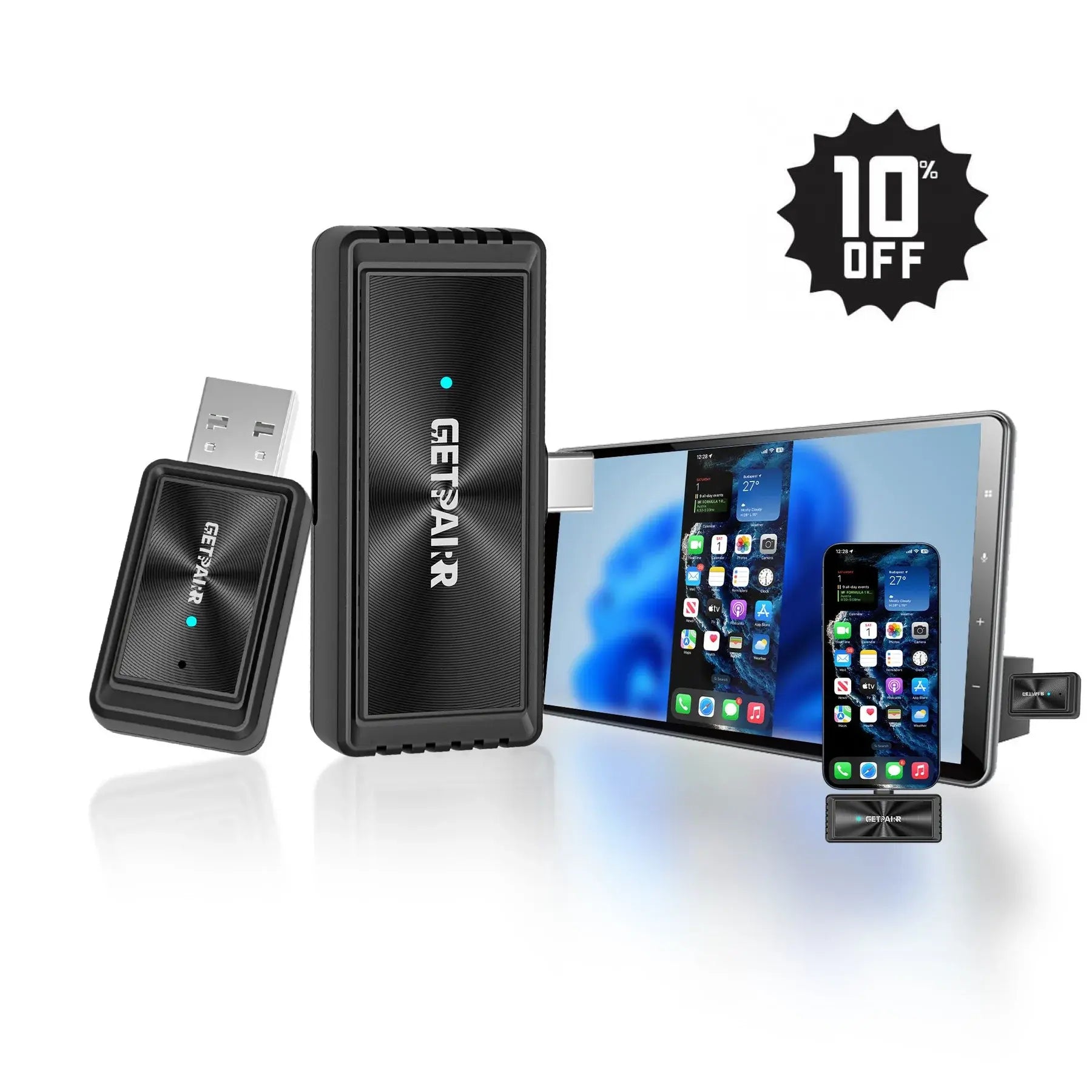

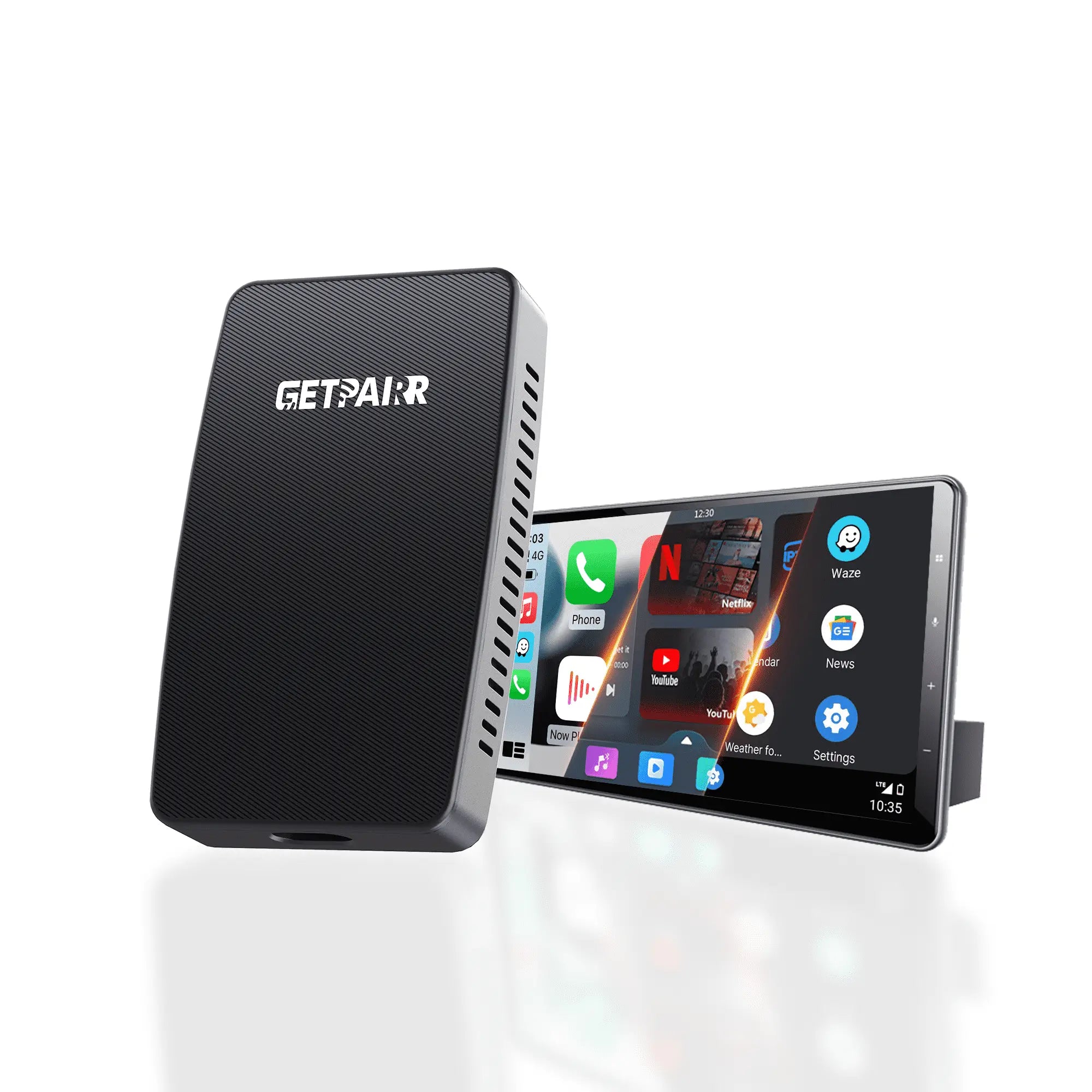


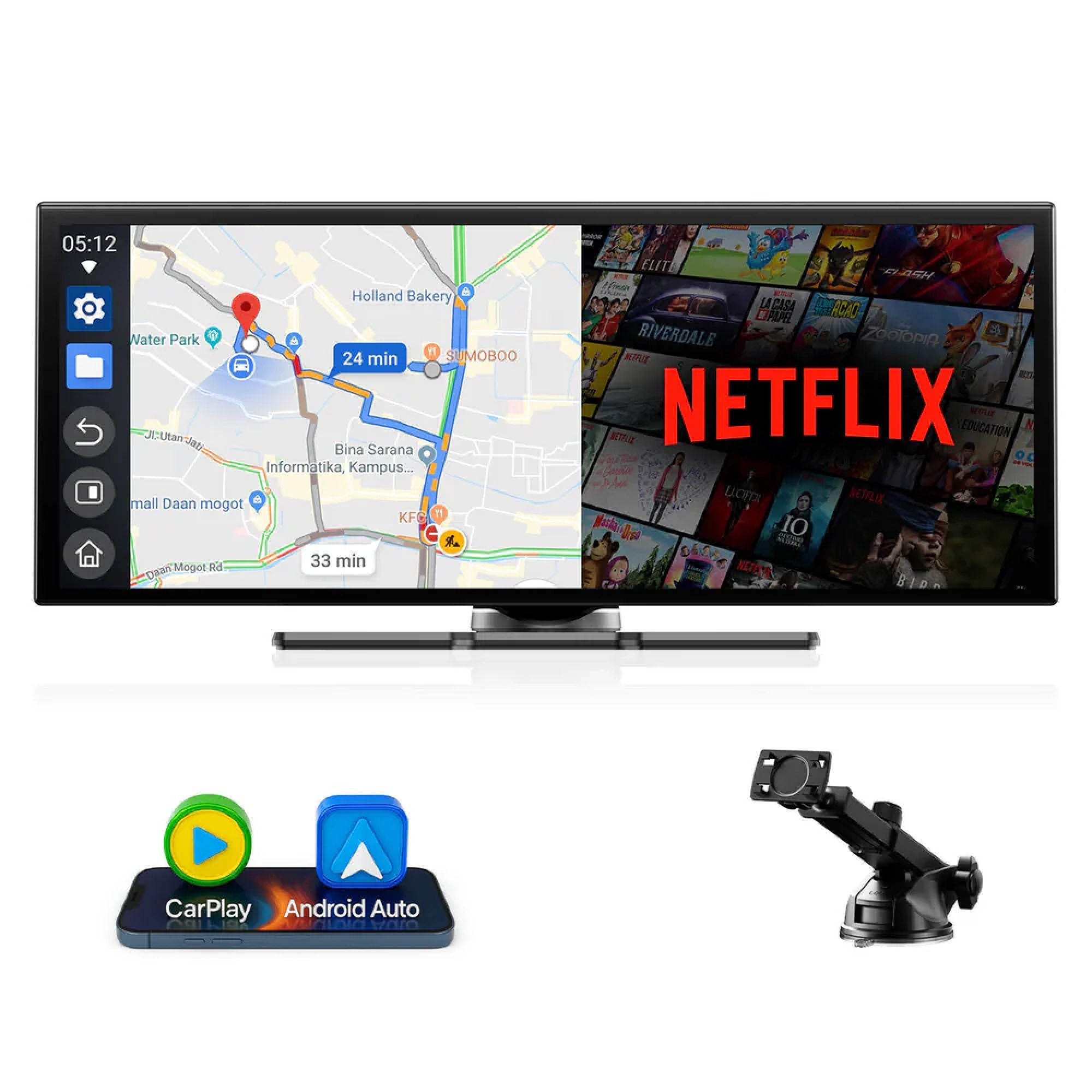



GetPairr Go 2.0
Sale priceFrom $89.00 USD
Regular price$249.00 USD
2026 Upgraded GetPairr® MiniPod | Wireless CarPlay & Android Auto Adapter
Sale price$29.99 USD
Regular price$99.00 USD
GetPairr AI Box 2.0
Sale price$149.99 USD
Regular price$300.00 USD
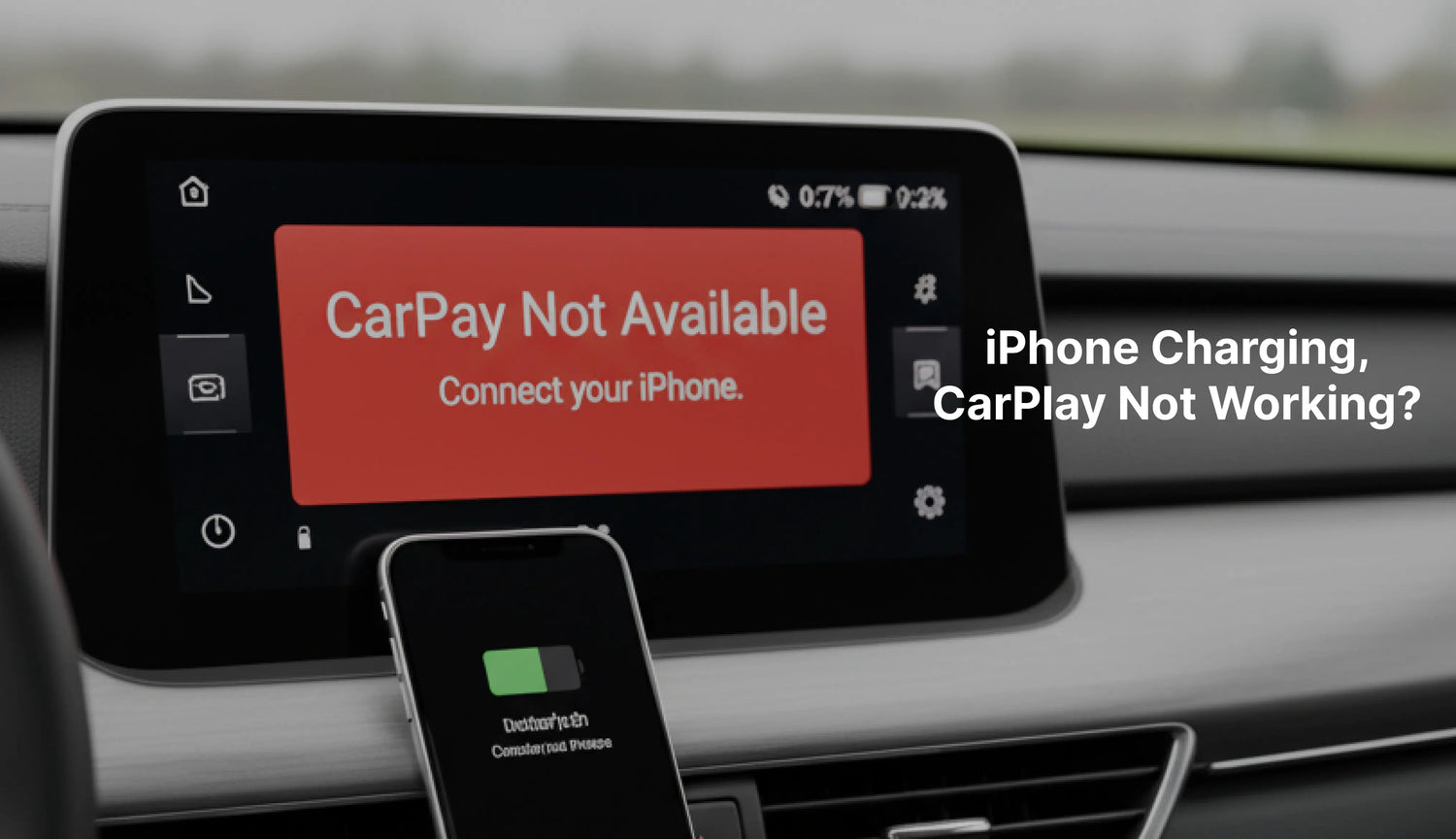
Imagine this: You hop into your car, ready for your commute or a road trip. You plug in your iPhone, see that familiar charging icon, and expect CarPlay to seamlessly pop up on your dashboard. But nothing happens. Your iPhone is charging perfectly, yet CarPlay not working. The screen remains blank, or worse, flashes a "CarPlay Not Available: Connect your iPhone" message. This common yet incredibly frustrating scenario can ruin the start of any drive.
You’re not alone in this dilemma. Many users, particularly those relying on adapters to bring wireless CarPlay to their vehicles, encounter these mysterious disconnects. This guide is specifically tailored to help you diagnose and fix these common CarPlay adapter issues, ensuring you can get back to enjoying a truly smart drive. Let's dive in and troubleshoot your way back to a connected journey.

Understanding the Disconnect: Why Charging Isn't Enough
Before we jump into solutions, it’s crucial to understand a fundamental concept: iPhone charging but CarPlay not connecting often stems from a misunderstanding of how USB connections work.
Power vs. Data: A Crucial Distinction When you plug a USB cable into your iPhone and your car's port, it serves two primary functions:
- Power (Charging): The cable delivers electrical current to recharge your phone's battery. This is why you see the charging icon.
- Data (Communication): For features like CarPlay, the cable (or wireless connection) must also be able to transmit data – instructions, audio, video, and touch commands – between your iPhone and the car's system.
How Your CarPlay Adapter Works: Identifying the Chain Links If you're using a CarPlay adapter, you've added another crucial link to the connection chain. Typically, a wireless CarPlay adapter works by:
- Plugging into your car's wired USB CarPlay port.
- Establishing a Wi-Fi and Bluetooth connection with your iPhone.
- Acting as a "bridge," converting the wireless signals from your iPhone into the wired CarPlay signals that your car understands.
The First Line of Defense: Quick & Easy Fixes (Start Here!)
When your CarPlay isn't working but your phone is charging, don't panic! Many common issues can be resolved with a few simple, yet effective, steps. Think of these as your basic "reset" button for the entire system.
The Universal Fix: Reboot Everything!
It sounds cliché, but a simple restart can clear temporary software glitches that prevent CarPlay from connecting.
- Reboot Your iPhone: Hold down the power button and volume button (or side button, depending on your model) until the power off slider appears. Slide it to power off, wait a few seconds, then power it back on.
- Restart Your Car's Infotainment System: This varies by vehicle. Often, turning your car completely off, opening and closing the door (to ensure the system fully shuts down), waiting 30 seconds, and then restarting the car will do the trick. Some vehicles may have a specific button combination or an option in the car's settings to restart the infotainment system.
- Power Cycle Your CarPlay Adapter: This is crucial for CarPlay adapter troubleshooting. Unplug your CarPlay adapter from the car's USB port, wait for about 10-15 seconds, and then plug it back in. This allows the adapter to fully reset and re-establish its connection.
Physical Connection Check:
Faulty or poorly connected cables are a notorious culprit when CarPlay connection problems arise, especially if your phone is charging but no data is flowing.
Inspect USB Cables:
- Car to Adapter Cable: This is the most critical link. Ensure the USB cable connecting your car's USB port to your CarPlay adapter is securely plugged in at both ends.
- Quality Matters: Always use high-quality, preferably original equipment manufacturer (OEM) or MFi (Made For iPhone) certified USB cables. Cheap or damaged cables can easily cause USB cable CarPlay not working issues, even if they appear to charge your phone. Check for any fraying, bends, or damage to the connectors. If in doubt, try a different, known-good cable.
Check USB Ports:
Carefully inspect both the car's USB port and the USB port on your CarPlay adapter. Look for any dust, lint, debris, or bent pins that could obstruct a proper connection. Use a small, non-metallic tool (like a toothpick) or compressed air to gently clean them if necessary. Try a different USB port in your car if one is available.
Essential CarPlay Settings Verification:
Sometimes, a setting on your iPhone or in your car might be inadvertently preventing CarPlay from launching.
iPhone CarPlay Settings:
- On your iPhone, go to Settings > General > CarPlay.Here, you should see your car or the CarPlay adapter listed. If not, you may need to try connecting again (instructions often come with the adapter).Tap on your car/adapter name and ensure "Allow CarPlay While Locked" is enabled.
- Car's Infotainment Settings:Most modern cars have a dedicated section for connectivity or smartphone integration in their infotainment system settings.Navigate through your car's menus to ensure that CarPlay functionality hasn't been accidentally disabled or restricted within the vehicle itself.
By systematically going through these quick checks, you can often resolve many common iPhone charging CarPlay not connecting issues before needing to delve into more complex solutions.
Deeper Dive: Advanced Troubleshooting Steps
If the quick fixes didn't get your CarPlay back online, it's time to dig a bit deeper into your iPhone, your CarPlay adapter, and even your car's system. These steps address more persistent CarPlay connection problems.
iPhone Software & Settings:
Your iPhone's software state plays a critical role in CarPlay's functionality.
Disable "Do Not Disturb" / Focus Modes:
While convenient, these modes can sometimes interfere with CarPlay's ability to initialize or display notifications, leading to the impression that CarPlay isn't working. Temporarily disable them to see if it resolves the issue.
Siri Status:
CarPlay heavily relies on Siri for voice commands and overall functionality.
- Go to Settings > Siri & Search.
- Ensure "Listen for 'Hey Siri'" or "Press Side Button for Siri" is enabled, and Siri is active. If not, enable it. You might even try toggling it off and on again.
Reset Network Settings:
This is a powerful troubleshooting step for all kinds of connection issues. It resets Wi-Fi passwords, cellular settings, and VPN configurations, but does not delete any personal data like apps, photos, or contacts.
- Go to Settings > General > Transfer or Reset iPhone > Reset > Reset Network Settings.
- After resetting, you'll need to reconnect to your Wi-Fi networks and re-pair any Bluetooth devices.
Update iOS:
Apple frequently releases iOS updates that include bug fixes and improvements for CarPlay compatibility.
- Go to Settings > General > Software Update.
- Ensure your iPhone is running the latest iOS version. An outdated iOS can sometimes cause CarPlay no signal or CarPlay keeps disconnecting issues with newer adapters or car systems.
CarPlay Adapter Specific Solutions:
Since you're using an adapter, it's a key component that needs attention.
Adapter Firmware Update:
This is often the most critical step for CarPlay adapter troubleshooting. Manufacturers frequently release firmware updates to:
- Improve compatibility with new iOS versions or car models.
- Fix bugs that cause CarPlay connection problems.
- Enhance performance and stability.
- How to Update: Check the manual or the manufacturer's website (e.g., Ottocast.com for an Ottocast firmware update) for instructions. Most adapters have a companion app or a web interface (accessible by connecting your phone to the adapter's Wi-Fi network) where you can check for and apply updates. Always follow the manufacturer's instructions carefully.
Clear Adapter Pairing History:
Just like your phone, your CarPlay adapter might store old, corrupted, or conflicting pairing records. Many adapters have a reset button (often a small pinhole) or an option within their companion app to clear the pairing history. Refer to your adapter's manual for specific instructions on how to
how to reset CarPlay adapter and clear its memory.Test with a Wired Connection (if possible):
If you're using a wireless CarPlay adapter, try bypassing it temporarily.
- Connect your iPhone directly to your car's USB CarPlay port using a high-quality USB cable.
- If CarPlay works perfectly with a wired connection, it strongly suggests the issue lies with your CarPlay adapter or its wireless connection to your iPhone. If it still doesn't work, the problem might be with your car's USB port or infotainment system.
Vehicle System Considerations:
Sometimes the car itself needs a bit of attention.
Car Infotainment System Updates:
Just like your iPhone, your car's software can be updated. Car manufacturers periodically release updates for their infotainment systems that can improve CarPlay compatibility and resolve bugs.
Consult your car's manual or visit your dealership's service department to inquire about available car infotainment system updates.
Delete Car's Stored CarPlay Devices:
Your car's system also remembers previously connected CarPlay devices.
- Navigate through your car's infotainment settings (often in the "Bluetooth," "Connectivity," or "Smartphone Integration" menus).
- Delete any old or existing iPhone or CarPlay adapter pairings. This provides a fresh start for your CarPlay connection.
By methodically working through these advanced troubleshooting steps, you significantly increase your chances of resolving the CarPlay not showing up on screen or CarPlay keeps disconnecting problems.
When to Call for Backup: Seeking Professional Help
You've tried everything – reboots, cable checks, settings adjustments, and even firmware updates. If your iPhone charging but CarPlay not connecting issue persists, it might be time to bring in the experts.
- Contact Your CarPlay Adapter Manufacturer: If, after all the troubleshooting, your wireless CarPlay adapter still isn't performing, the adapter itself might be faulty. Reach out to their customer support. Be prepared to provide them with your adapter's model number, firmware version, your iPhone model and iOS version, and a detailed description of the steps you've already taken. For example, if you have an Ottocast device, contacting Ottocast support would be your next step.
- Reach Out to Apple Support: If your iPhone struggles with CarPlay even when connected directly via a cable (bypassing the adapter), or if you suspect a deeper iOS software bug, Apple Support can offer guidance. They can help diagnose potential iPhone hardware issues or walk you through specific software restoration processes.
- Visit Your Car Dealership: If CarPlay works with other iPhones or if a direct wired connection also fails, the problem might lie with your car's USB port, wiring, or the infotainment system itself. Your car dealership's service department has specialized diagnostic tools and expertise to address vehicle-specific CarPlay issues. They can check for faulty hardware or apply necessary updates to your car infotainment system.
Remember, these professionals are equipped to handle complex issues that go beyond basic troubleshooting. Don't hesitate to contact them if you've exhausted all other options.
Conclusion: Get Back to Seamless Driving
Experiencing issues like your iPhone charging but CarPlay not connecting can be incredibly frustrating, especially when you rely on your CarPlay adapter for a seamless, smart driving experience. By following this comprehensive troubleshooting guide—from simple reboots and cable checks to crucial firmware updates and detailed iPhone settings—you’ll be well-equipped to tackle most CarPlay connection problems. The key is to approach the issue step by step, testing each fix patiently and systematically. Don’t let a minor tech glitch stop you from enjoying effortless navigation, crystal-clear calls, and your favorite playlists on the road. Take control, follow these steps, and get your CarPlay running smoothly again. If you discover a specific solution that worked for you, feel free to share it in the comments below to help other drivers facing the same challenge.
Q&A: Your Top Questions About CarPlay Connection Issues Answered
Having trouble getting CarPlay to work even though your iPhone is charging? You're not alone! Here are some frequently asked questions and their answers, based on our comprehensive troubleshooting guide.
Q1: My iPhone is charging, but CarPlay still isn't connecting. Why is this happening? A1: This is the core issue! Seeing your iPhone charge only confirms power delivery, not data transmission. CarPlay requires a stable data connection between your iPhone, your CarPlay adapter, and your car. A damaged cable, a faulty port, or a software glitch can interrupt data flow while allowing power to pass through.
Q2: What's the very first thing I should try if CarPlay isn't working?
A2: Always start with a reboot of everything: your iPhone, your car's infotainment system, and especially your CarPlay adapter (unplug it, wait 10-15 seconds, then plug it back in). This simple step can clear many temporary software conflicts.
Q3: Does the type of USB cable matter for CarPlay? My cheap cable charges fine.
A3: Absolutely, yes! While a cheap cable might charge your phone, it might not be designed or built to handle the high-speed data transfer required for CarPlay. Always use a high-quality, MFi-certified USB cable to connect your iPhone or your CarPlay adapter to your car. Damaged or low-quality cables are a very common cause of
USB cable CarPlay not working issues.Q4: I'm using a wireless CarPlay adapter. What are some specific things I should check for it?
A4: For wireless CarPlay adapter users, crucial steps include:
- Power cycling the adapter (unplug and replug).
- Checking for and installing any firmware updates for your adapter (often via its companion app or manufacturer's website).
- Clearing the adapter's pairing history.
- Ensuring your iPhone's Wi-Fi and Bluetooth are enabled and properly connected to the adapter.
Q5: My iPhone is updated, my adapter is updated, and I've tried everything. What next?
A5: If you've exhausted all troubleshooting steps, it's time to seek specialized help:
- Contact your CarPlay adapter manufacturer (e.g., Ottocast support) if you suspect the adapter is faulty.
- Contact Apple Support if you suspect an iPhone hardware or deeper iOS software issue.
- Visit your car dealership if you suspect a problem with your car's USB port, wiring, or infotainment system.
Q6: Can "Do Not Disturb" or Focus Modes on my iPhone interfere with CarPlay?
A6: Yes, they can. While not always the direct cause of a complete failure, these modes can sometimes prevent CarPlay from initializing correctly or displaying notifications, making it seem like the system isn't working as expected. It's a good idea to temporarily disable them during troubleshooting.
Q7: How important is it to update my car's infotainment system?
A7: Very important! Just like your iPhone and CarPlay adapter, your car's infotainment system receives updates. These updates can include crucial bug fixes and improved compatibility with newer iOS versions or CarPlay adapters, resolving
CarPlay connection problems. Check with your dealership for available updates.Q8: I get a message "CarPlay Not Available: Connect your iPhone." What does this specifically mean?
A8: This message indicates that your car's system isn't detecting a valid CarPlay device, even if your phone is charging. It typically points to a failure in the data connection or recognition process. Revisit all connection checks (cables, ports) and software settings (iPhone CarPlay settings, adapter firmware) as outlined in the guide.
Reading next


GetPairr Go 2.0
Sale priceFrom $89.00 USD
Regular price$249.00 USD
2026 Upgraded GetPairr® MiniPod | Wireless CarPlay & Android Auto Adapter
Sale price$29.99 USD
Regular price$99.00 USD
GetPairr AI Box 2.0
Sale price$149.99 USD
Regular price$300.00 USD
FAQ
Use this text to share information about your product or shipping policies.
1. Can I use Apple CarPlay with an Android phone?
No, Apple CarPlay only works with iPhones. If you have an Android phone, you'll need to use Android Auto. Each system is made to work with its own type of phone.
2. Do I need a special cable for CarPlay or Android Auto?
For USB use, CarPlay works best with Apple-certified cables. Android Auto works with most USB-C or micro-USB cables. Both systems also have wireless options, but your car must support them.
Tip: Check your car's manual to see if it allows wireless pairing.
3. Which system is better for navigation?
It depends on what you like. Google Maps on Android Auto is very accurate and has many features. Apple Maps on CarPlay is simpler and works well with iPhones. Both systems also let you use Waze for more choices.
4. Can I customize the interface of CarPlay or Android Auto?
Yes! CarPlay lets you move app icons around. Android Auto gives you more ways to change the layout and pick themes. If you like to personalize, Android Auto offers more options.
5. Are these systems safe to use while driving?
Yes, they are made to keep you safe. Both systems use voice commands, simple screens, and hands-free controls. This helps you stay focused on the road instead of your phone.
Note: Set up your system before driving to avoid distractions.